You design it. Then what? A clear map of the Figma-to-code AI mess
Effective AI-to-code workflows rely on a four-layer stack—MCP, Markdown docs, skills, and mapping—to bridge the gap between Figma design and functional production code.
Deep dive
- MCP acts as the USB-C of AI, allowing tools like Claude to access your Figma file structure directly.
- Markdown files (CLAUDE.md) act as 'design memory,' providing the AI with rules it wouldn't otherwise know.
- Skills serve as reusable recipes for specific, repetitive tasks like contrast checking.
- Mapping (e.g., Code Connect) links Figma components to the actual codebase to eliminate design-to-code drift.
- For small teams, a shared human-maintained note is often more reliable than complex automated mapping.
- Maintain clean Figma files (variables and auto-layout) because AI output quality depends entirely on input structure.
Decoder
- MCP (Model Context Protocol): An open standard that allows LLMs to connect securely to local or remote data sources like Figma, databases, or file systems.
- Code-native: A workflow where the primary source of truth for design is the actual code component rather than a static design file.
Original article
You design it. Then what? A clear map of the Figma-to-code AI mess
A beginner’s guide through the AI pipeline fog.
If you put a room of designers together and asked how their work actually gets from Figma into real code with AI, you would get a few seconds of silence and then a lot of different answers, none of them confident. That is not because you missed a memo. There simply is no memo yet. So let me walk through it in plain words.
The demos are real. Your confusion is also real.
You have seen the videos. Someone connects Figma to an AI tool, types a sentence, and a working screen appears in seconds. It looks like the whole problem is solved. Then you try it on your own real project, and it falls apart, and you assume you did something wrong.
You did not. The demos show you one clean layer working under perfect conditions. Your actual work needs three or four layers stacked together, and nobody shows you the stack, because the stack is where it gets messy and half-solved. The confusion comes from not knowing they are separate things at different stages that need different skills.
The design-to-code stack, one layer at a time
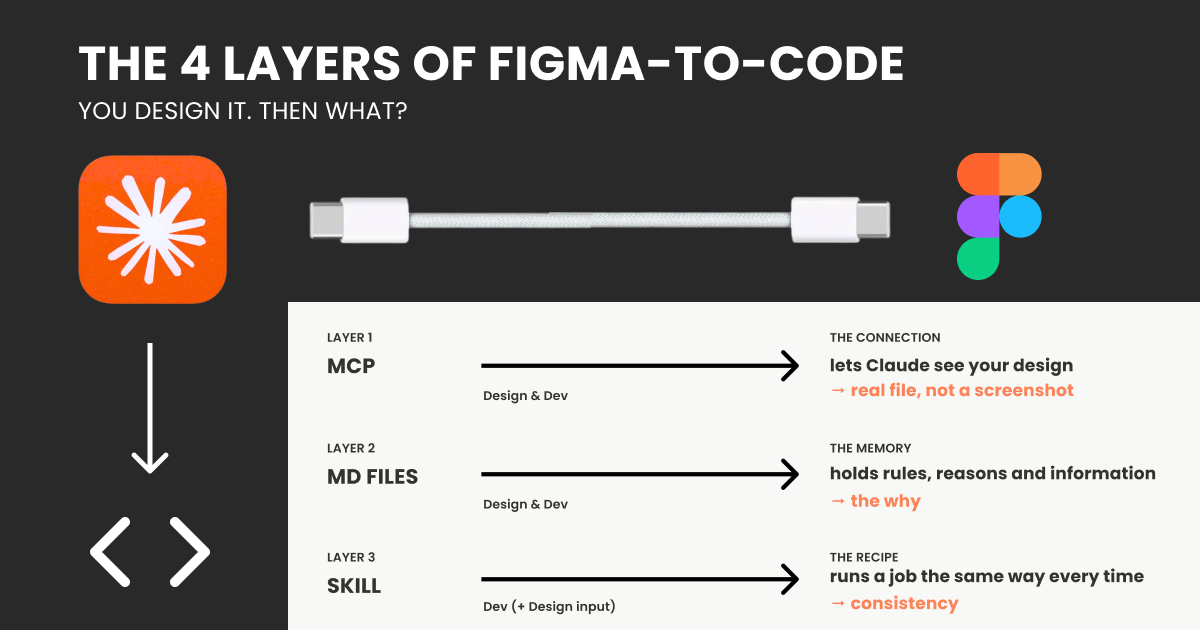
Layer 1: The MCP. The connection.
MCP is one of those new words flying around, so let’s first understand what it does and does not do.
Think of an AI assistant like Claude as very smart, but sitting in a sealed room. It can reason beautifully, but on its own, it cannot see your files, your Figma, your tools. It only knows what you paste into the chat.
An MCP is how you open a door in that room. The name stands for Model Context Protocol, but forget the words. The useful picture is USB-C. USB-C is one standard plug that connects your laptop to almost anything: a screen, a drive, a camera, so you do not need a different cable for each anymore. An MCP is the same idea for AI: one standard way to plug a tool into Claude. Plug in the Figma one, and Claude can look inside Figma. Plug in others, and it can reach your other tools the same way.
MCP is only the wiring, and Claude is the mind. And it is not plugged into one tool at a time; it sits in the middle like a hub, connected to all of them at once, so for example, it can pull your notes from Notion and read your design in Figma in the same moment, work out what matters, and turn it into code. The wiring just carries the signal. Claude is the part that understands what it is looking at.
So in real terms: without it, you take a screenshot of your design, paste it into the chat, and hope Claude understands the picture. With the Figma MCP connected, Claude reaches into the actual file and reads the real thing: your exact colours, your spacing, your fonts, how the layout is stacked. Not a photo of your design, but the design and structure itself.
What MCP fixes: Claude can finally see your work, details and structure properly in its context, instead of squinting at an image you paste.
Where does it come from? How to access it?
You don’t make an MCP; you connect to one that the tool’s makers have already built. For Figma, there are three options: you can switch them on via connectors (in Claude, the little plus button in the chat window) or install them, depending on which you pick.
The gap it leaves:
it reads your values and your structure, not your code. It sees a button and copies the colour and the corners, but it has no idea your team already has a real, reusable button sitting in the codebase (or not… or if you have a codebase at all). So it quietly builds a fresh lookalike every time. Your colours, yes. Your real component, no. This is fine for a quick website, but not enough for a scaling product.
Layer 2: The markdown (md) files. The memory.
The pipe lets Claude see your design, but it cannot see what is in your head. Your rules, the choices you would never write on the canvas but always make anyway.
A markdown file is where you put all the rules and reasons of your design. It is just a plain text note you write once and let Claude read, and it is the one place your reasoning actually survives, because your Figma file holds what things look like and your code holds what they do, but only this note holds why. Think of it like the handover note you would leave a freelancer joining your project.
It says things like here are my breakpoints, my colours and all you need to know. Here are the rules and reasons I always follow. “Use the quiet button for secondary actions.” “Never two loud buttons on one screen.” Claude, reading your Figma file, has no way to know any of that. This note hands it over.
What is a markdown file? Where is it and who makes it?
Markdown (md) is just a plain text file, saved with a .md ending, the same way a document is saved as .pdf, with a little light formatting like a README uses, and its charm is that humans and machines both read it with no translation in between. You rarely write it from scratch: you let the MCP read your Figma file, have Claude draft a first version from your colours, spacing and components, then refine it in the chat or by hand.
Where it lives depends on how you work. At its simplest, it is just a file sitting in your project folder. If you work with Claude, that file is called CLAUDE.md, and Claude reads it automatically every time, so you never have to re-explain yourself.
What it fixes:
Claude now works with your judgment, not just your pixels.
The gap it leaves:
A markdown file is guidance Claude reads, not a rule that runs, so it can only ever shift the odds in your favour, never hold the line. This is because Claude reads your rule and usually follows it, but can still interpret it loosely or quietly drop it when a screen gets complicated. Also, the note gets weaker the bigger it grows, since ten sharp rules get followed, but a sprawling rulebook starts competing with itself. On top of that, it goes out of date the moment you change something and forget to update it, so a note nobody keeps current keeps handing Claude yesterday’s directions with full confidence.
Layer 3: The skill. The recipe.
A skill is one step up from a note. A note tells Claude what to know.
A skill tells the AI how to do a specific job, the same way every time, like a fixed rule to enforce.
Picture the difference between explaining a dish out loud every night and writing the recipe card once, with steps and measurements. A skill is a small folder holding those steps, and sometimes a bit of actual code, that Claude picks up only when that job comes around. Instead of re-explaining “this is how we build our components” each time, the skill holds the method and runs it consistently, but only when it is needed.
What is a skill? Where does it live, and who makes it?
A skill is just a folder with a plain instruction file inside (a SKILL.md, markdown again) plus any extra bits it needs, like a script or a template. It stays out of the way until a task matches its description, then it wakes up.
What it fixes:
The tasks you do over and over no longer come out slightly different every time.
The gap it leaves:
It is still something you write and keep up to date, and it still does not tie itself to your design. It is a very good recipe. It is not a wire connecting two rooms.
Layer 4: The mapping. The real wire.
Everything so far still leaves your design and your code as two separate worlds. This is the layer that finally joins them, and it is also the one that needs developers.
The mapping is the wire between those two libraries. Its Figma name is Code Connect, but the picture is what matters: you formally tell the system “this button in Figma is that exact button in the code, and here is where it lives.” Once the wire is in place, Claude stops guessing and stops building lookalikes. It points at your real component, the same one already running in your product.
What it fixes:
The drift. Design and code stop being two separate snapshots and start pointing at one shared source of truth.
The gap it leaves:
It is real work, and it is not designer work. It is written in code, maintained by developers, checked whenever something changes, and wired into the way the product gets built. It has an owner and a running cost. Build it without a team to keep it alive, and it rots.
The honest shape of it
Look at the whole stack. Each layer covers the hole under it. The pipe lets Claude see your design. The note carries your rules. The recipe keeps your repeated jobs consistent. And the mapping, the top layer, is the only one that truly welds design and code together so they never drift.
But that top layer needs a codebase, developers, and constant upkeep. Most people do not have that, and should not pretend to. So for almost everyone, the design and the code will drift the moment either side changes, and that is not a sign you set it up wrong. It is simply what these tools are without the expensive wire: they take a snapshot and build from it.
I am told to just skip Figma and vibe code
You will also meet tools that seem to skip this whole stack: you describe a screen or drop in a design, and a working app appears. They are not cheating. But the same limits apply underneath: they bundle the pipe, and maybe a little of the note, but they skip the mapping entirely and keep no memory of your system, so they build a fresh lookalike, not your real component, and they drift the same way.
So, what should you actually use and do as a Designer in Figma?
Two things, in order. First, get your file clean. Then, match the stack to your size. That is the whole plan.
First: clean files before any layer.
All four layers can only work with what is actually in your Figma file. If your colours are loose hex codes instead of styles or variables, if your spacing is eyeballed instead of auto-layout, if your components are not really components set up in auto layout, then the pipe has nothing clean to read, and the result comes back messy.
Then, match the stack to your size.
With your file clean, do not overengineer the rest. Add layers only as you grow.
If it is just you
You are solo, maybe a quick site or a product still finding its shape. You need two layers: the pipe and a note. Connect the Figma MCP so Claude builds in your real colours and spacing, and keep one short markdown note listing your reusable pieces and when to use each, pasted in every time. Skip skills until you catch yourself doing the exact same job every day. Forget the mapping completely, you have no codebase to wire it to and no developer to keep it alive.
If you are a small team
A designer or two, a developer or two, and now things go out of sync between people, not just tools. You need three layers: the pipe, a shared note everyone reads, and maybe one skill for the thing you build over and over. But the layer that actually holds you together is not a tool at all, it is a human habit: whoever changes a component in the code updates the shared note in the same breath.
If you own a (serious) design system
You own the components that a whole company builds on, and you cannot eyeball your way out of drift. This is the one tier where all four layers earn their cost, including the mapping. Wire Code Connect or similar to your real components in Storybook or whatever you use, and add an automatic check that shouts the moment design and code fall out of line.
The one thing that stays yours
Whichever size you are, one part never moves down the stack. Knowing which of the ten versions Claude just made is the good one. Which spacing feels right, which button earns the attention, and when to stop. The layers move your work from Figma toward code. That is still you, and that was always the actual job.
Fresh dev news, AI-digested daily. Never miss a trend at devoured.fyi