Control an Android Phone with Gemini 3.5 Flash Computer Use
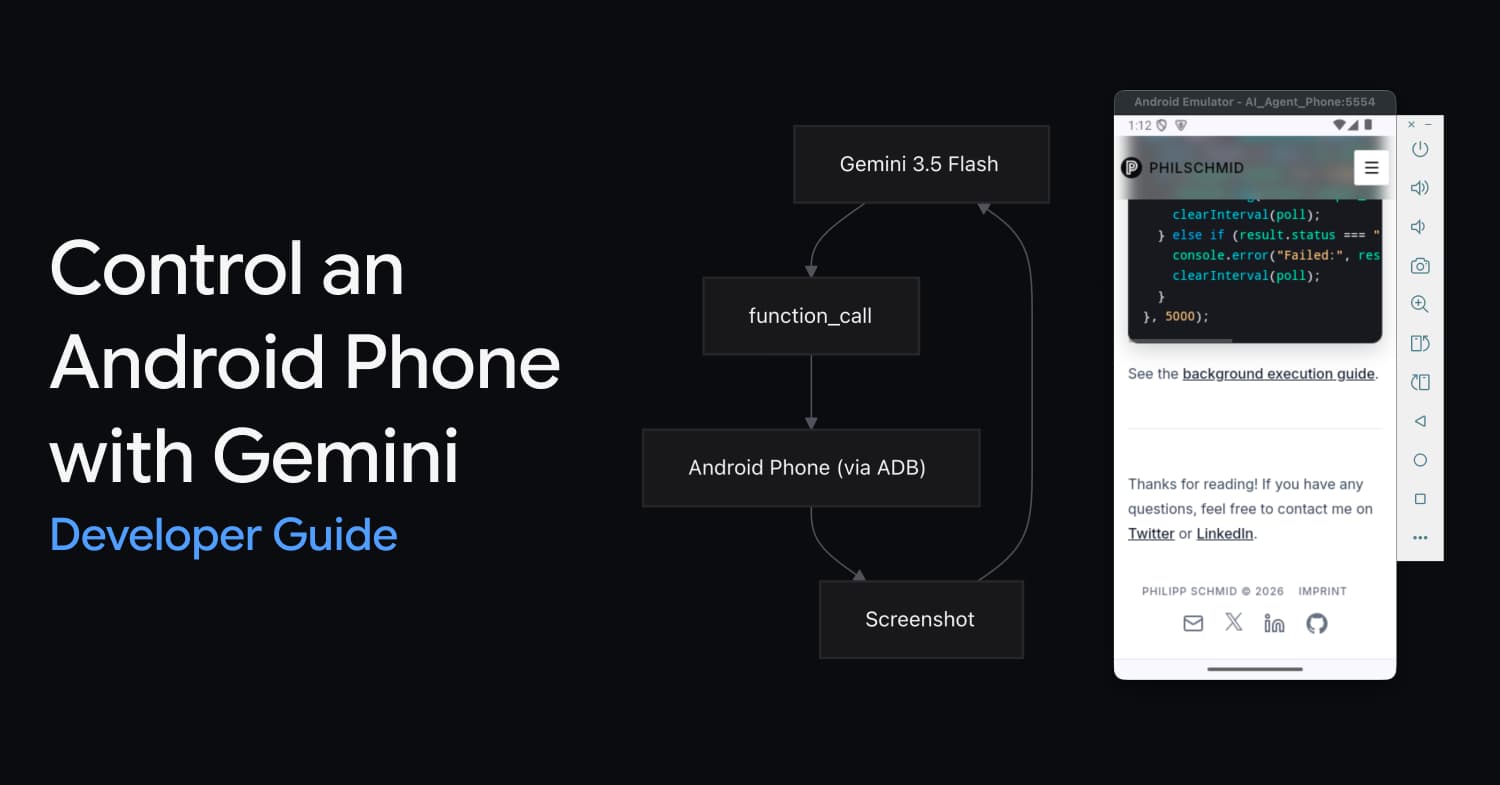
Gemini 3.5 Flash can now automate Android apps by observing screenshots and executing structured commands via the Android Debug Bridge (ADB).
Deep dive
- The model operates in a loop: observing a screenshot, selecting an action, and receiving environment feedback.
- Supported actions include click, swipe, type, app launch, and key events.
- Coordinates are normalized to a 0-999 grid for the model, then translated to pixel coordinates for the emulator.
- Requires Android SDK and Python
google-genailibrary.
Decoder
- ADB (Android Debug Bridge): A command-line tool that lets you communicate with an emulator instance or connected Android device.
- Computer Use: A capability allowing a model to observe a screen and issue OS-level commands (clicks, typing, gestures).
Original article
Control an Android Phone with Gemini 3.5 Flash Computer Use
Gemini 3.5 Flash has built-in Computer Use. The model looks at a screenshot, decides what to do, and returns a function call like click(y=300, x=500). You execute that action on the device via ADB, take a new screenshot, and send it back. Repeat until the task is done.
This guide walks you through controlling an Android emulator using the mobile environment and the Python SDK.
What is Computer Use?
Computer Use is a native tool in Gemini 3.5 Flash. You give the model a screenshot and a goal ("open Settings and turn on dark mode"). The model returns structured actions: taps, text input, swipes, app launches. Your code executes those actions on the target device.
It works like function calling. The model proposes actions, you execute them, you send back the result. The model stays in the loop through screenshots.
Gemini supports three Computer Use environments: browser for desktop web automation, mobile for mobile devices/emulators, and desktop for operating system-level control. This guide uses mobile.
Supported actions (mobile environment)
These are the actions the model can request when using environment: "mobile". Your code must handle each one.
| Action | Description | Arguments |
|---|---|---|
open_app |
Opens an app by name | app_name: str, intent: str (optional) |
click |
Tap a screen coordinate | y: int (0-999), x: int (0-999) |
type |
Type text | text: str, press_enter: bool (default false) |
long_press |
Long-press a coordinate | y: int (0-999), x: int (0-999), seconds: int (default 2) |
drag_and_drop |
Drag between two points | start_y, start_x, end_y, end_x |
press_key |
Press a key (home, back, enter...) | key: str |
go_back |
Navigate back | (none) |
wait |
Pause execution | seconds: int (default 1) |
list_apps |
List installed apps | (none) |
take_screenshot |
Capture the screen | (none) |
Coordinates are normalized to a 0-999 grid. (0, 0) is top-left, (999, 999) is bottom-right. Your bridge converts these to actual pixel coordinates based on the device resolution.
Setup
No Android Studio GUI required. Run the setup script on your Mac to install the Android SDK, emulator, and create a virtual device from the terminal.
1. Run the setup script
chmod +x setup_emulator.sh
./setup_emulator.sh
2. Install Python dependencies
pip install google-genaiThe agent loop
The Python agent script handles locating SDK paths and starting the emulator in the background automatically.
How to run it
# Set your API key
export GEMINI_API_KEY="your-key"

# Run the agent (starts the emulator automatically if needed)
python agent.py "Open Settings and enable dark mode"
Connecting to a Remote Device
You can also target physical Android devices or remote cloud emulators instead of a local virtual device.
- Enable USB/Wireless Debugging: On your target device, enable Developer Options and turn on USB Debugging or Wireless Debugging.
- Connect via ADB: Use the
adb connectcommand to link to a remote device over TCP/IP:adb connect <device-ip-address>:5555 - Pass the Device ID to the Agent: Pass the remote device's connection string as the
device_idparameter to target it in the agent loop:# Target a remote or cloud-hosted emulator run_agent("Check the weather", device_id="35.200.100.10:5555")
Next Steps & Developer Tips
- Supporting iOS / iPhone: The Gemini API's
mobileenvironment is platform-agnostic. The model outputs actions (clicks, swipes, types) on the same normalized0-999grid regardless of whether the device is Android or iOS. To target an iPhone or iOS Simulator, you only need to swap outADBBridgewith an iOS-compatible tool. - Production Robustness: The Python bridge code provided here is synchronous and optimized for demonstration. For production use, you should implement robust retry logic for network drops, handle ADB disconnects gracefully, and execute operations asynchronously.
- Handling Safety Decisions: In real-world tasks (especially those modifying state or making payments), the model might flag action steps with a
safety_decisionrequesting confirmation. Ensure your production loop inspectsstep.argumentsfor safety flags and prompts the user before executing the action.
Fresh dev news, AI-digested daily. Never miss a trend at devoured.fyi