
Create Custom MCP Catalogs and Profiles
Docker tackles AI tool sprawl by packaging MCP server catalogs as OCI container artifacts, letting enterprises distribute approved tools through Docker Hub with the same access controls they use for images.
Deep dive
- Custom Catalogs solve the problem of teams individually searching for and vetting MCP servers by creating curated, trusted collections that organizations control
- Catalogs are OCI artifacts (same format as container images) that can be pushed to any container registry (Docker Hub, private registries) and managed with existing access controls
- Create a catalog referencing both public servers (
catalog://mcp/docker-mcp-catalog/playwright) and custom internal servers (file://./mcp-dice.yaml) - Push with
docker mcp catalog push [org]/catalogand teammates import via Docker Desktop UI ordocker mcp catalog pull - Profiles are named groupings of MCP servers for different workflows—switch between 'coding' and 'planning' profiles to change which tools appear in your agent context
- Profiles persist server configurations (e.g. which file paths Markitdown can access, which GitHub tools to enable) so you don't reconfigure repeatedly
- Profiles optimize context windows by enabling only needed tools—disable unused GitHub tools so they don't consume tokens
- Profiles are also OCI artifacts shareable via
docker mcp profile push/pull [namespace]/[profile-name] - Separation of concerns: platform teams publish golden path catalogs, developers compose their own profiles for day-to-day work
- Upcoming features include governance policies restricting usage to approved catalogs, improved discoverability, profile-scoped secrets, and integration with agent skills
- Example workflow: create
roberthouse224/our-catalogwith Playwright + GitHub + custom roll-dice server, push to Docker Hub, teammates import and create profiles for different contexts - No vendor lock-in—profiles work with any MCP-compatible agent (Claude Code, etc.), not just Docker-specific tools
Decoder
- MCP (Model Context Protocol): Protocol that lets AI agents access external tools and data sources—servers expose tools (like GitHub API calls, web scraping, file access) that agents can invoke during conversations
- OCI artifact: Open Container Initiative standard format for distributing content through container registries—same packaging used for Docker images, but can contain any data (here, catalog/profile metadata)
- stdio: Standard input/output communication model where programs exchange messages via stdin/stdout rather than network protocols—common for local MCP servers running as processes
Original article
Custom MCP Catalogs and Profiles: Advancing Enterprise MCP Adoption
We're excited to announce the general availability of Custom Catalogs and Profiles for managing Model Context Protocol (MCP) servers. These two complementary capabilities fundamentally change how teams package, distribute, and manage AI tooling.
Custom MCP Catalogs let organizations curate and distribute approved collections of MCP servers. MCP Profiles enable individual developers to easily build, run, and share their MCP tools and configurations across projects and teams.
In this post, we'll walk through how to create your own custom catalog – building on and improving our previous approach. We'll also introduce Profiles, a new primitive that lets you define portable, named groupings of MCP servers. Profiles are designed to solve several practical use cases today, while giving us a foundation to expand in the future.
Creating custom catalogs with Docker
As organizations adopt MCP, we consistently hear the same need: teams need a way to curate a trusted list of MCP servers, including internally built servers.
To address these needs, we built Custom Catalogs. Instead of every team member searching for MCP servers across the open internet, organizations can publish and distribute catalogs that define approved servers. This allows developers to centrally discover and use trusted MCP servers within organizational boundaries.
Custom Catalogs can reference servers from Docker's MCP Catalog, community sources, and custom MCP servers developed internally, bringing flexibility, control, and trust together in a single experience. We will show you how to do that with a Custom Catalog.
Step-by-step: Building and sharing a custom MCP catalog
In this example, we will create a Custom Catalog containing servers from the Docker MCP Catalog and an MCP server we created ourselves from the CLI. Then we will show you how to use Docker Desktop to import the catalog.
All the functionality we will show can be exercised through the CLI, while a subset of primarily user-centric features can be exercised through Docker Desktop.
Here, we will use my personal Docker Hub ID roberthouse224 in the commands, but you should adapt to use your information where appropriate (e.g. pushing an image).
Step 1: Creating my custom MCP server and pushing it to Docker Hub
We built a reference server called roll-dice (GitHub Repository). It is a regular MCP server that communicates over stdio and can be built as a Docker image. The image has already been built and pushed to Docker Hub.
We can create the metadata that describes the server including where the image can be found and save it to a file named mcp-dice.yaml to be used when creating our catalog.
name: roll-dice
title: Roll Dice
type: server
image: roberthouse224/mcp-dice@latest
description: An mcp server that can roll dice
Step 2: Creating a catalog that includes servers from the Docker MCP Catalog alongside a server you have built yourself
Now we can create a custom catalog containing servers from the Docker MCP Catalog and the MCP server we created ourselves.
docker mcp catalog create roberthouse224/our-catalog \
--title "Our Catalog" \
--server catalog://mcp/docker-mcp-catalog/playwright \
--server catalog://mcp/docker-mcp-catalog/github-official \
--server catalog://mcp/docker-mcp-catalog/context7 \
--server catalog://mcp/docker-mcp-catalog/atlassian \
--server catalog://mcp/docker-mcp-catalog/notion \
--server catalog://mcp/docker-mcp-catalog/markitdown \
--server file://./mcp-dice.yaml
Step 3: Verifying the MCP servers in the custom catalog
We can now list our catalogs and see the catalog that we created
docker mcp catalog list
We can also inspect the contents of the catalog
docker mcp catalog show roberthouse224/our-catalog --format yaml
Step 4: Share the catalog
At the moment our custom catalog only lives on our machine. But what we have – and this is really powerful – is an immutable OCI artifact containing our trusted MCP servers that can be easily shared.
We can push our catalog to a container registry, in this example we're using Docker Hub. Now, anyone that has access to your organization's namespace can access the catalog.
docker mcp catalog push roberthouse224/our-catalog
Using a custom MCP catalog
Now that our custom catalog has been shared, colleagues can import it from within Docker Desktop (or from the cli using docker mcp catalog pull).
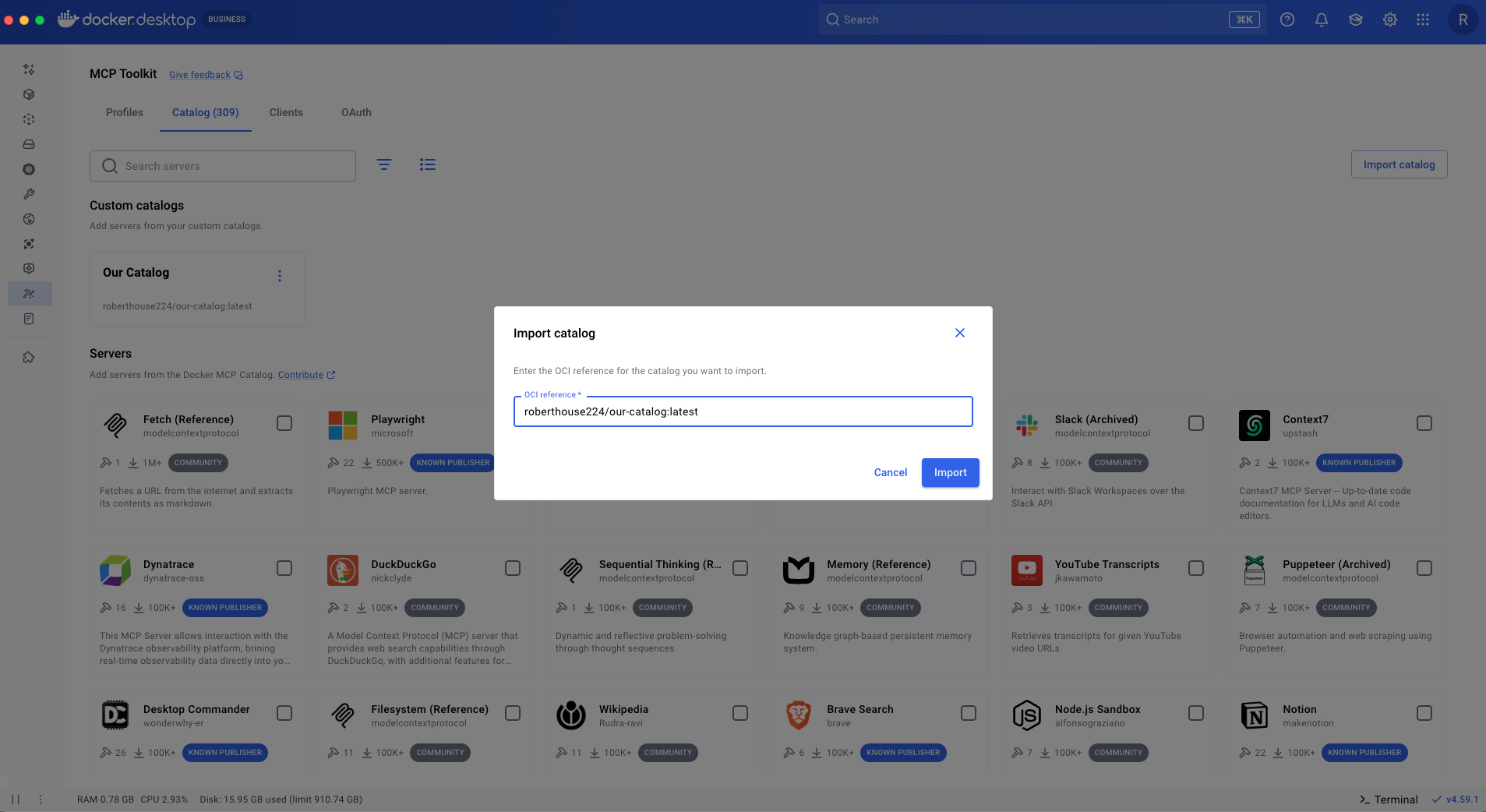
Import the catalog from Docker Desktop by selecting "Import catalog," and then specifying the OCI reference in the dialog.
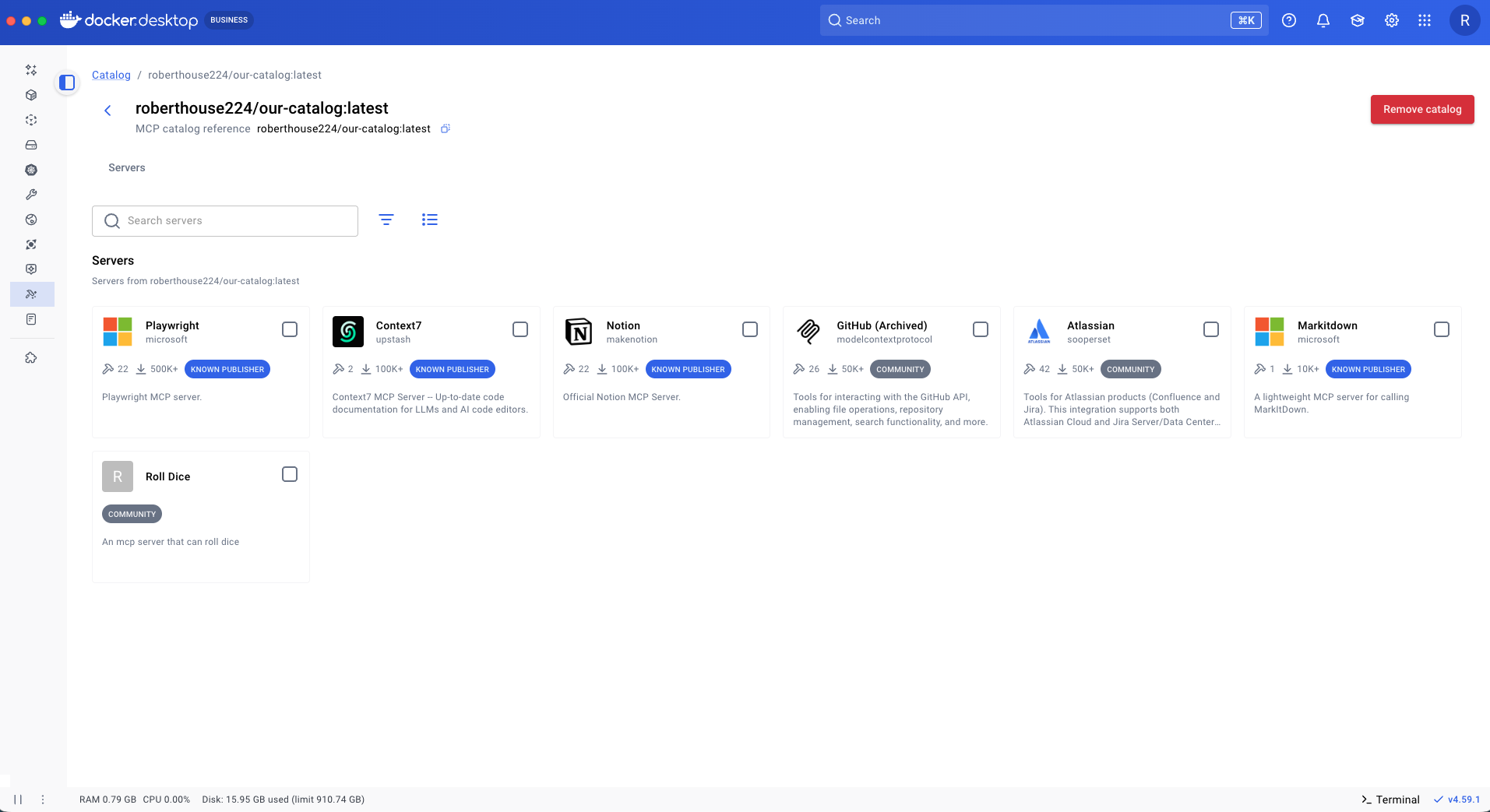
The catalog is now browsable. You can double click into the catalog and see all of the servers contained within it. Notice the custom MCP server that we added named "Roll Dice."
To make this a private catalog all you need to do is manage access to the repository the way you always have for container images – no new infrastructure to manage or systems to learn.
This is exactly what Jim Clark was describing in his post Private MCP Catalogs and the Path to Composable Enterprise AI.
This simple pattern can be extended to support more complex use cases. For example, you might use a private container registry instead of Docker Hub, or connect to a remote MCP server over streamable HTTP you host yourself rather than running a containerized server as shown in the example.
Now that we have a shareable custom catalog of trusted MCP servers we can shift focus to how individuals can effectively leverage MCP servers from the catalog we built in their workflows.
Using Profiles to create and share MCP Workflows
With MCP Profiles, developers can organize workflows efficiently and maintain separate server collections and configurations for different use cases. Profiles can be shared across teams, enabling collaboration on server setups and ensuring consistent configurations for teams working within the same projects or contexts.
Switch between Profiles
At a basic level, a Profile is a named grouping of MCP servers that can be connected to an agent session. This makes it straightforward to define different Profiles for different ways of working.
Now let's see an example in action.
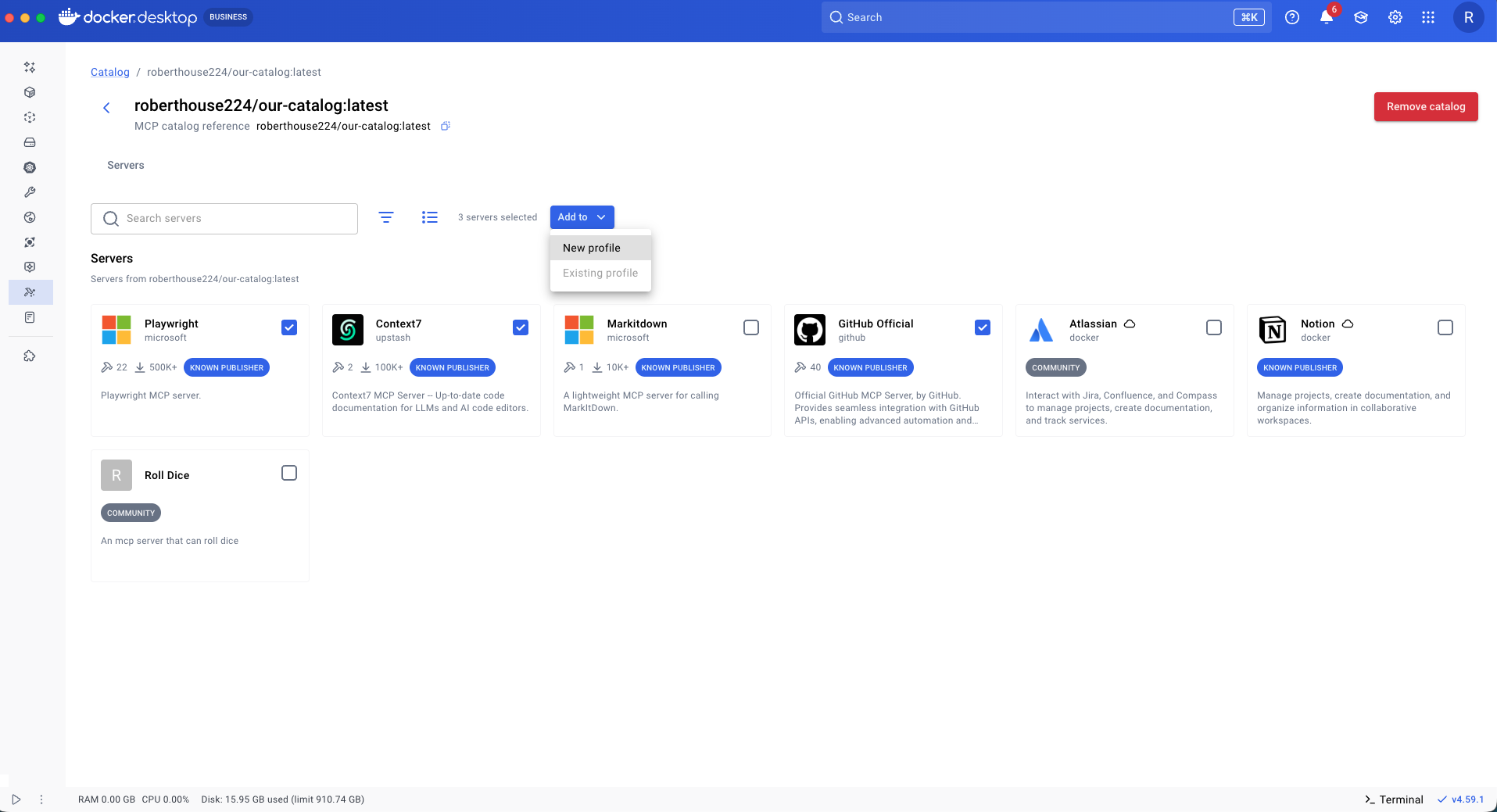
We create a profile named coding and another named planning. We browse our custom catalog, select the MCP servers that we want (e.g. Playwright, GitHub, and Context7) then select the "Add to" drop down, and select "New profile".
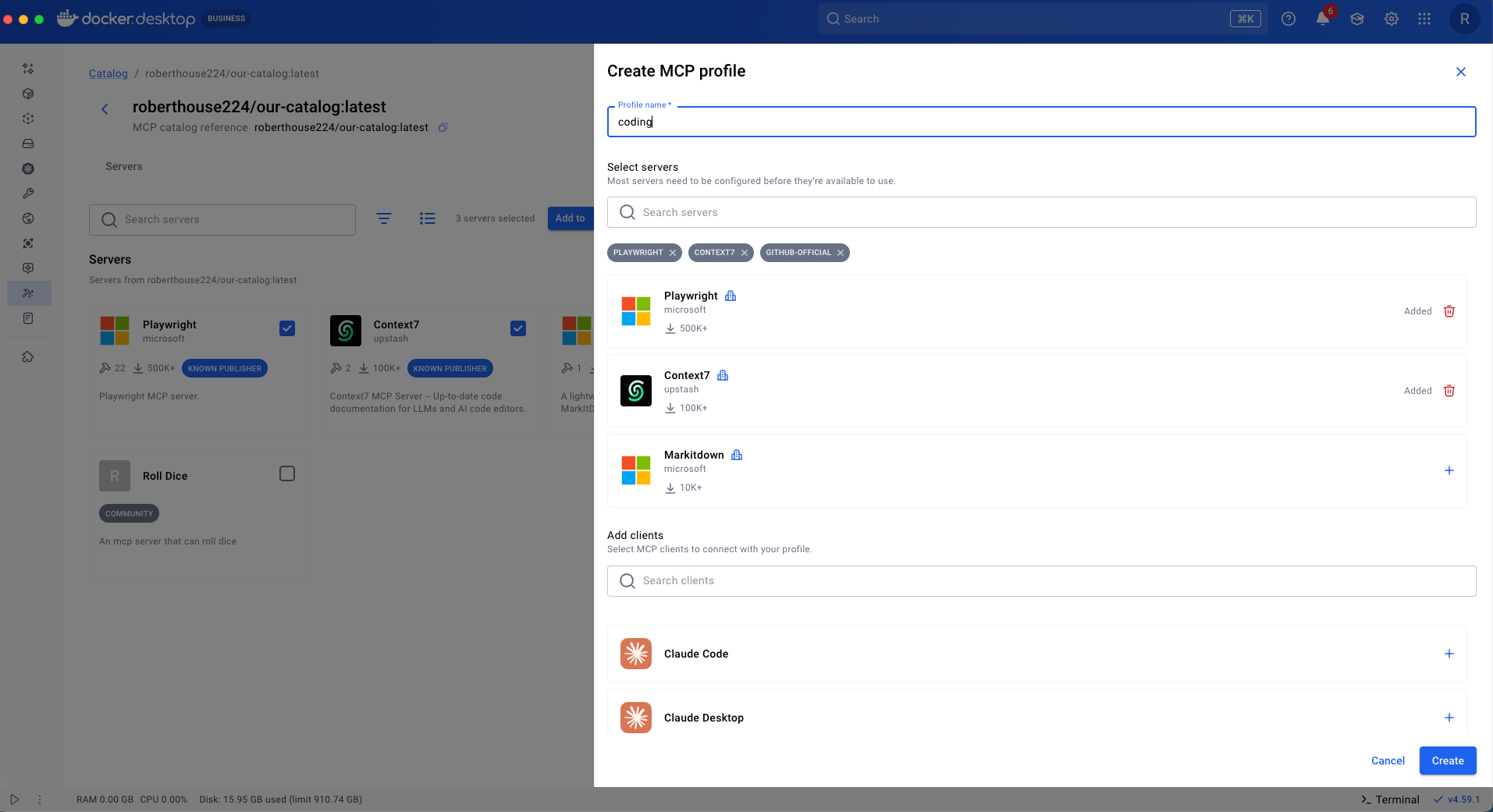
Give the profile a name, select the client you want to connect to, and select "Create".
From the Profiles tab, we can see the profile we just created. Our client is connected and our tools are ready to use.
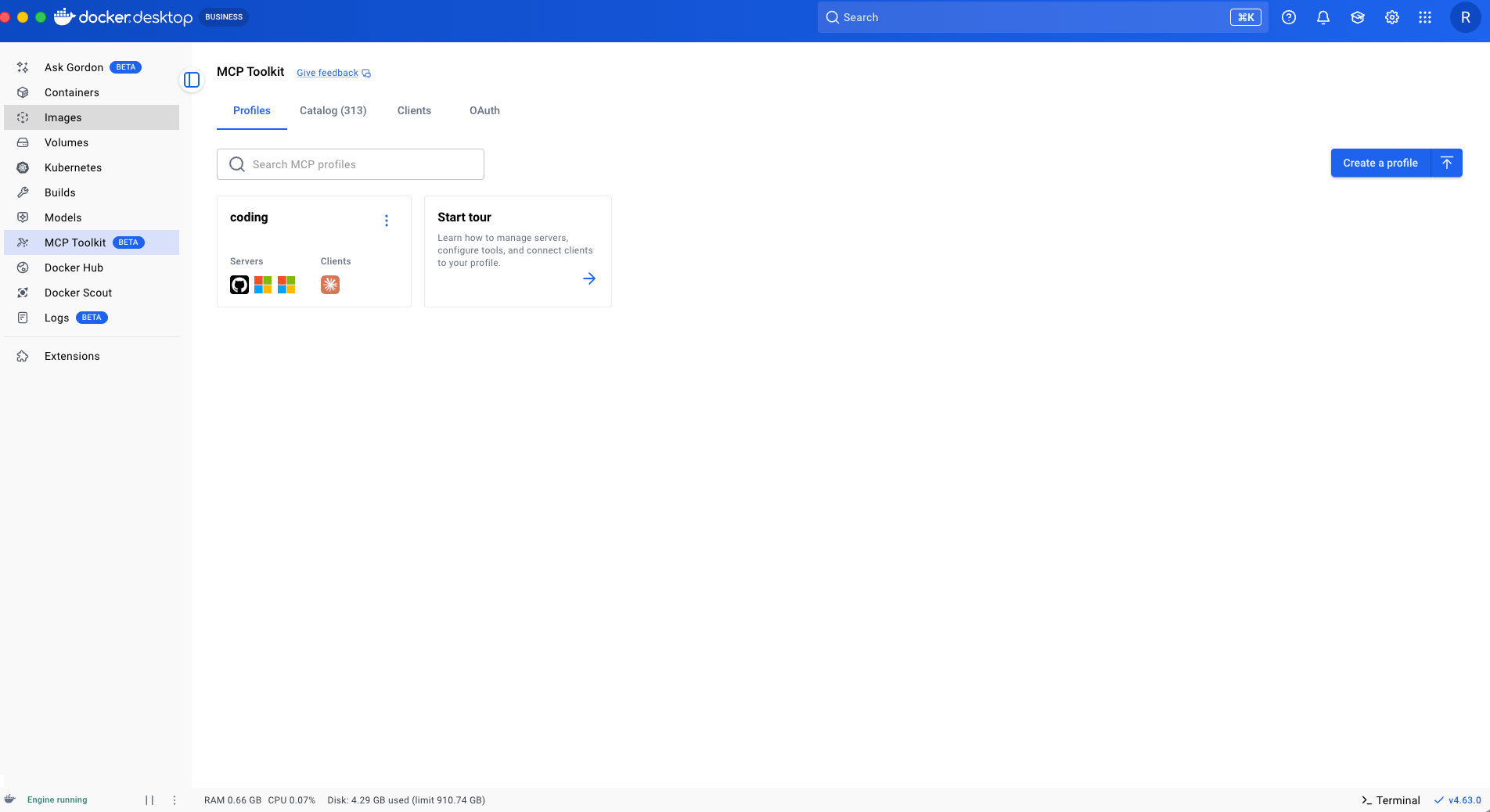
Next we create a profile named planning with servers relevant to planning (e.g. Atlassian, Markitdown, Notion).
Navigate back to "our-catalog" (if not already there), select the servers relevant to planning, and select "Add to" -> "New profile." Give the profile a name (e.g. planning). Then select "Create" to create the planning profile without a client. Specifying the client is optional.
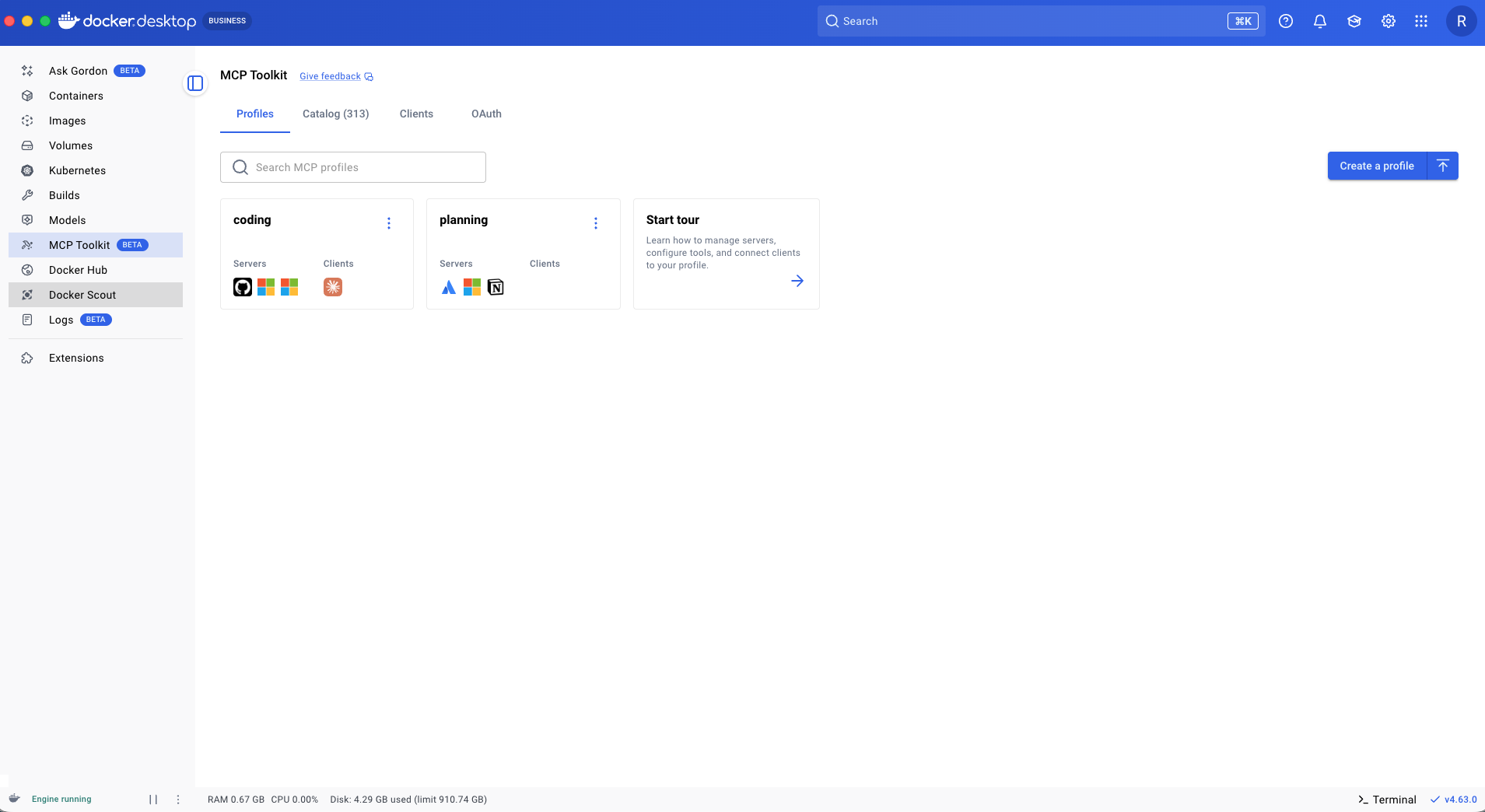
Now we have two profiles that mirror two modes of working. When we switch to planning mode we only want the tools from our planning profile to be in context. To do that, we can easily reassign our client to the planning profile.
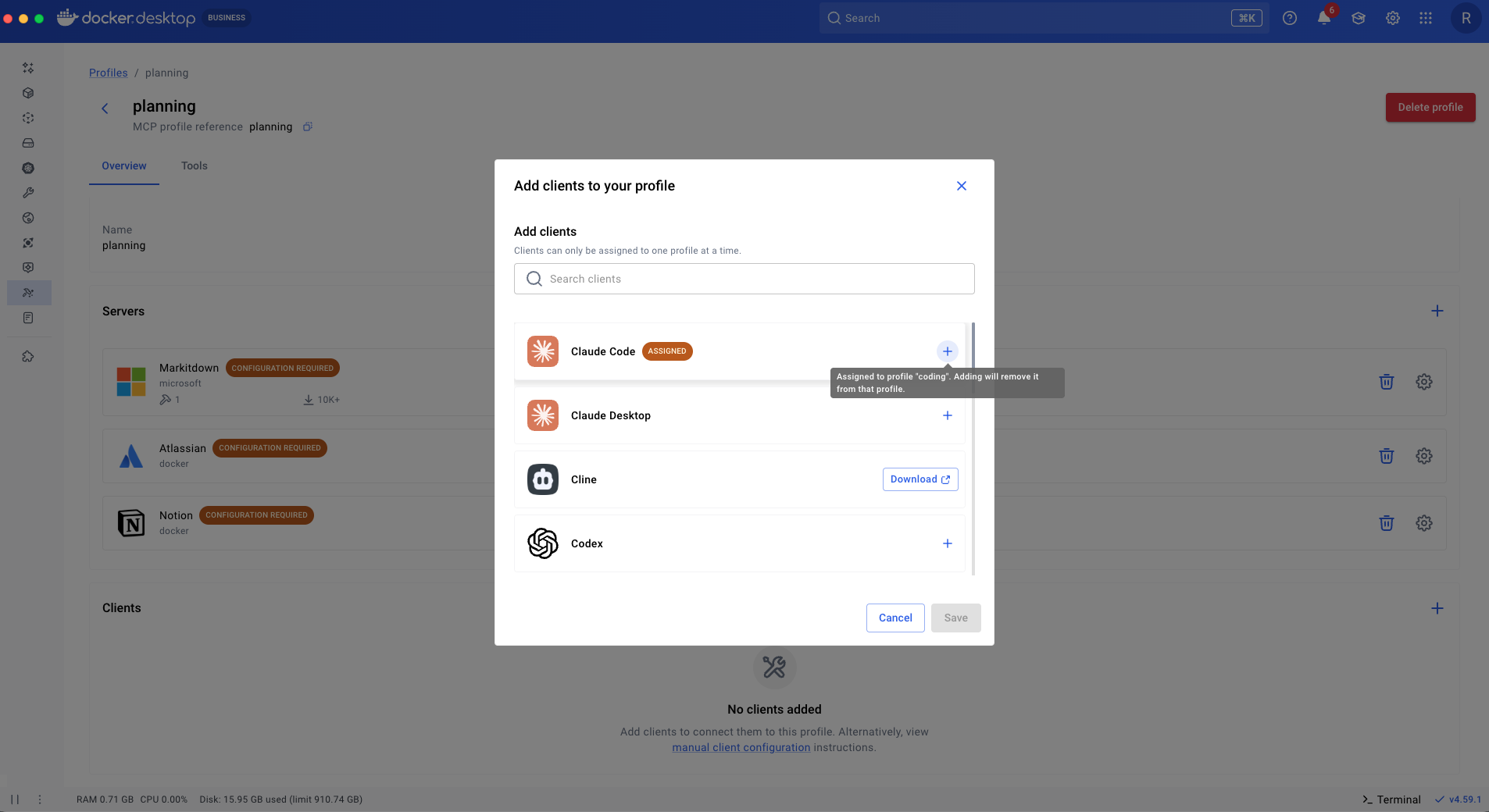
If we go back to coding mode, we just reassign our client back to the coding profile. You can have any number of Profiles that mirror your many ways of working and easily switch between them, keeping only the tools you care about in context.
This will work with any agent, not just Claude Code. Profiles provide a truly portable way to manage your MCP server setups and avoid vendor lock-in.
Persist configuration
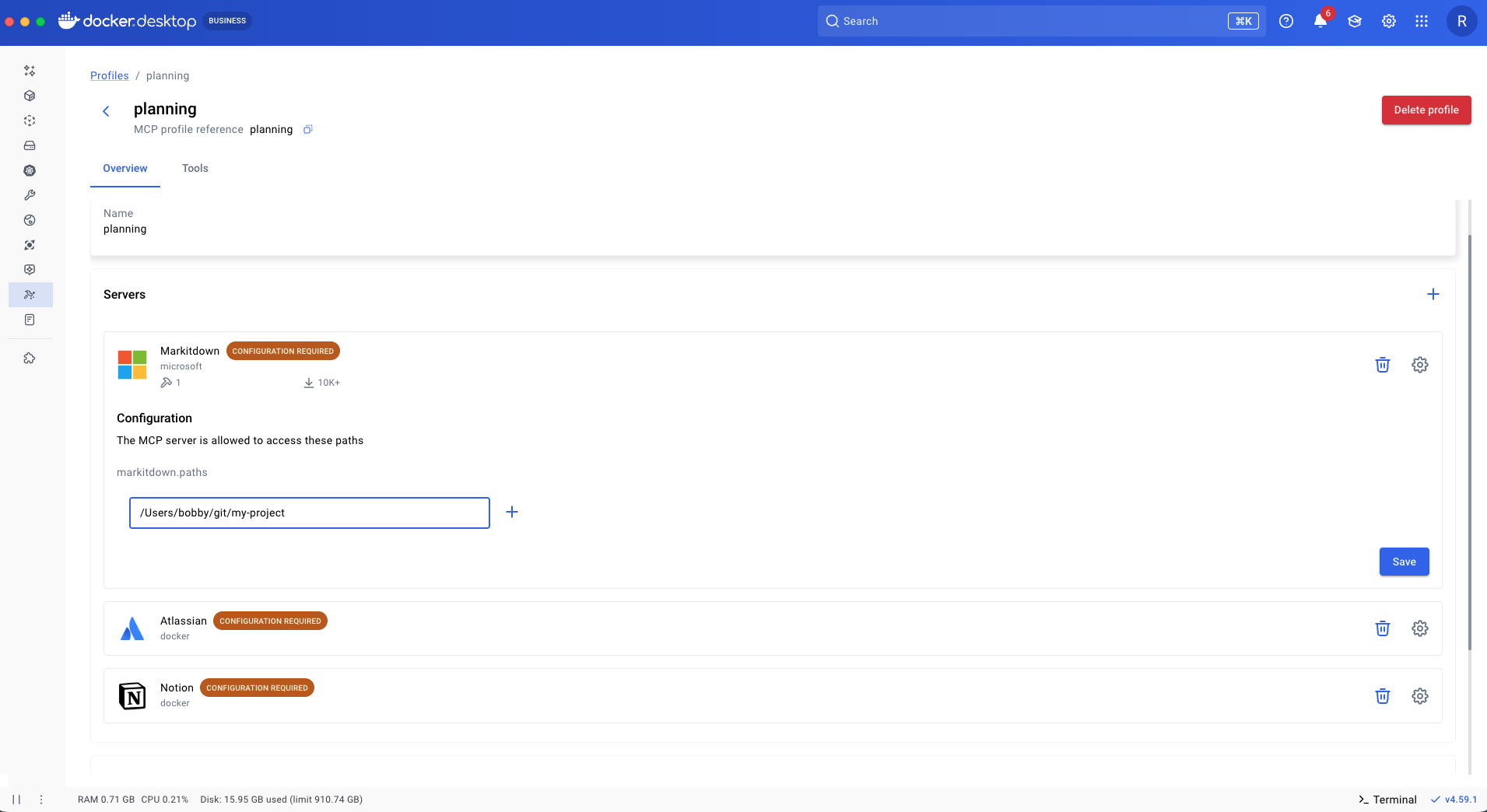
You can avoid repeatedly configuring MCP servers by using a Profile. Profiles add a persistence layer for MCP server configurations. When an MCP server exposes configurable options, you can define them once in a Profile and reload them as needed, avoiding repeated configuration.
In this example, we are specifying which paths Markitdown can access.
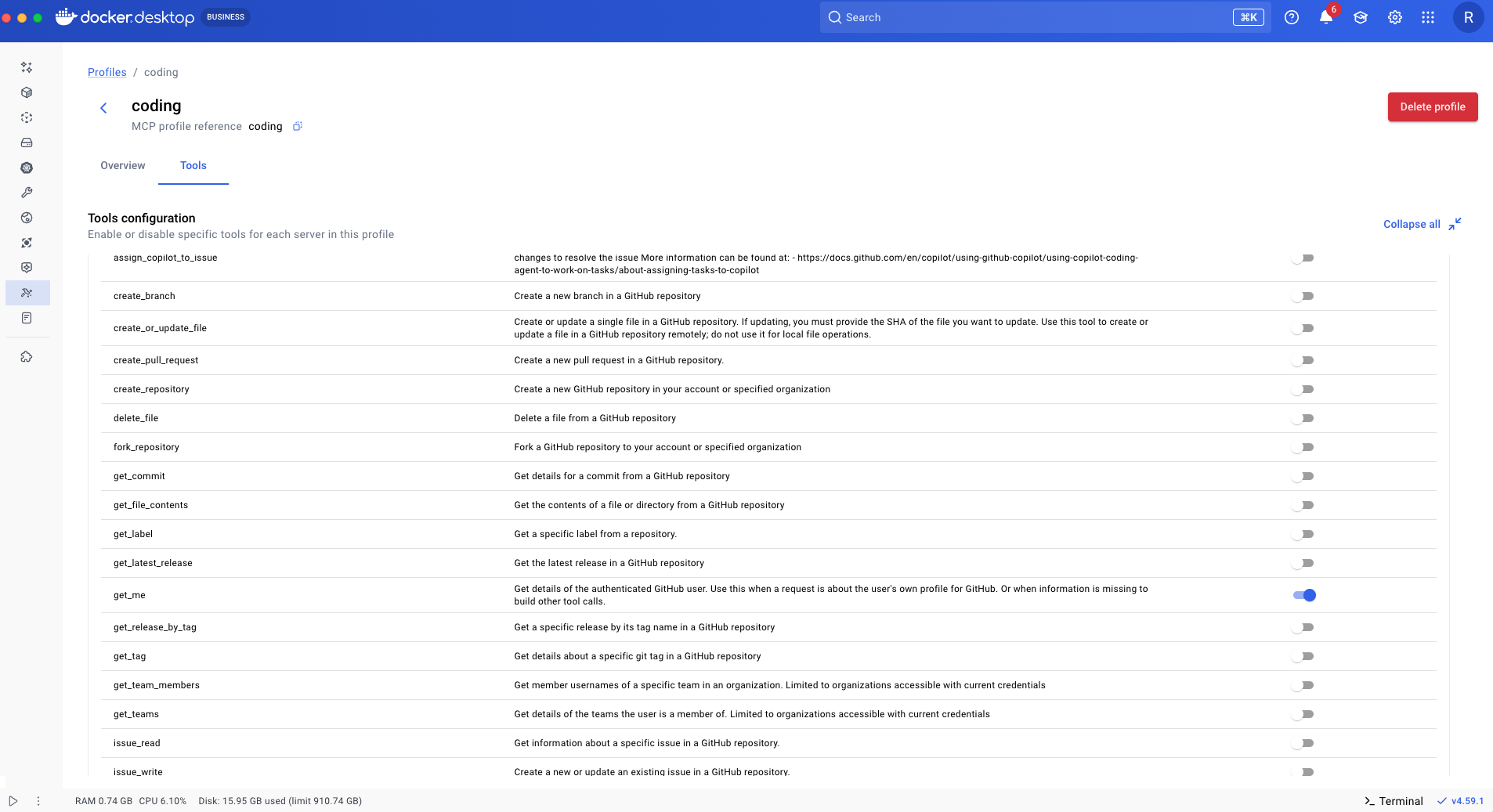
Context windows can easily fill up when the MCP servers you use export a lot of tools. With Profiles you can specify which tools are enabled, making sure only the tools you need for a specific task are used.
Here we enable the get_me tool from the GitHub MCP server and disable all the others. All the other tools will not show up in our agent session or contribute to the context window.
This model of saved configuration becomes far more powerful for MCP servers you build in-house. By exposing richer configuration options, you can reuse the same server across projects, reconfigure its behavior per context, and achieve more predictable outcomes.
Share Profiles
Identifying MCP servers and configurations that work well for a project doesn't need to be repeated by every team member. Once you've found a setup that works, share it with the rest of the team.
To share a Profile you can push it as an OCI artifact to a container registry just like we did with our custom catalog. Just provide a name for it along with an OCI reference.
➜ ~ docker mcp profile push coding [your-namespace]/codingFor someone to pull it down, all they have to do is issue the corresponding pull command.
➜ ~ docker mcp profile pull [your-namspace]/codingAlthough the example above demonstrates sharing Profiles across a team, the concept extends naturally to agents as well. An agent skill could, for instance, reference a Profile and pull in the required MCP servers and their configurations as dependencies.
Conclusion and What's Next
As MCP adoption grows, the challenge isn't access to tools — it's coordination. Teams need a way to standardize what's trusted and supported without constraining how individuals actually work. Custom Catalogs and Profiles are designed to solve exactly that problem.
Custom Catalogs: shared foundation
Custom Catalogs allow platform and admin teams to define approved MCP servers, bundle internal and public tooling together, and distribute those choices as a single, portable artifact. This creates clarity and consistency while significantly reducing the cost of discovery and evaluation.
Profiles: supercharge workflow
Profiles give individual developers a lightweight way to assemble, configure, and reuse MCP servers for specific contexts like coding, planning, or research. Profiles persist configuration, limit context to what matters, and make effective setups easy to share across teams.
Together, these primitives separate:
- What an organization recommends (via Custom Catalogs)
- How people work day to day (via Profiles)
This separation enables a healthy balance. Platform teams can publish "golden paths" that establish standards and guardrails, while developers retain the freedom to adapt, experiment, and compose profiles that fit their needs.
The result is a system that is portable, composable, and scalable — making MCP easier to adopt, safer to manage, and more effective as it grows across an organization.
What's Next?
Custom Catalogs and Profiles are the foundation for managing MCP at scale, and we're just getting started. Next, we're focused on extending these primitives to support stronger governance, better reuse, and more advanced agent workflows:
- Governance and policy controls to restrict MCP usage to approved Custom Catalogs and trusted server sources
- Improved discoverability and sharing for both Catalogs and Profiles, making proven setups easier to find and reuse across teams
- Expanded Profile-scoped secrets and configuration, providing a more secure and flexible alternative to project-level
mcp.jsonfiles - Clear best practices for Profiles, including saving dynamic MCP server configurations for reuse and pairing Profiles with emerging workflow optimizations like agent skills
Getting started with Custom Catalogs and Profiles
If you have Docker Desktop 4.56 you are already using Catalogs – our Docker MCP Catalog is now distributed as an OCI artifact and Profiles are supported starting with Docker Desktop 4.63. Try creating your first Profile by exploring the MCP Toolkit in Docker Desktop.
Learn more
- Dive into our documentation on Custom Catalogs and Profiles to get started quickly.
- Explore Docker's MCP Catalog and Toolkit on our website.
- Ready to go hands-on? Open Docker Desktop or the CLI and start using MCP to streamline and automate your development workflows.
Fresh dev news, AI-digested daily. Never miss a trend at devoured.fyi