Compare Commits to Your Code, Resolve Conflicts in Bulk, Keep Coding
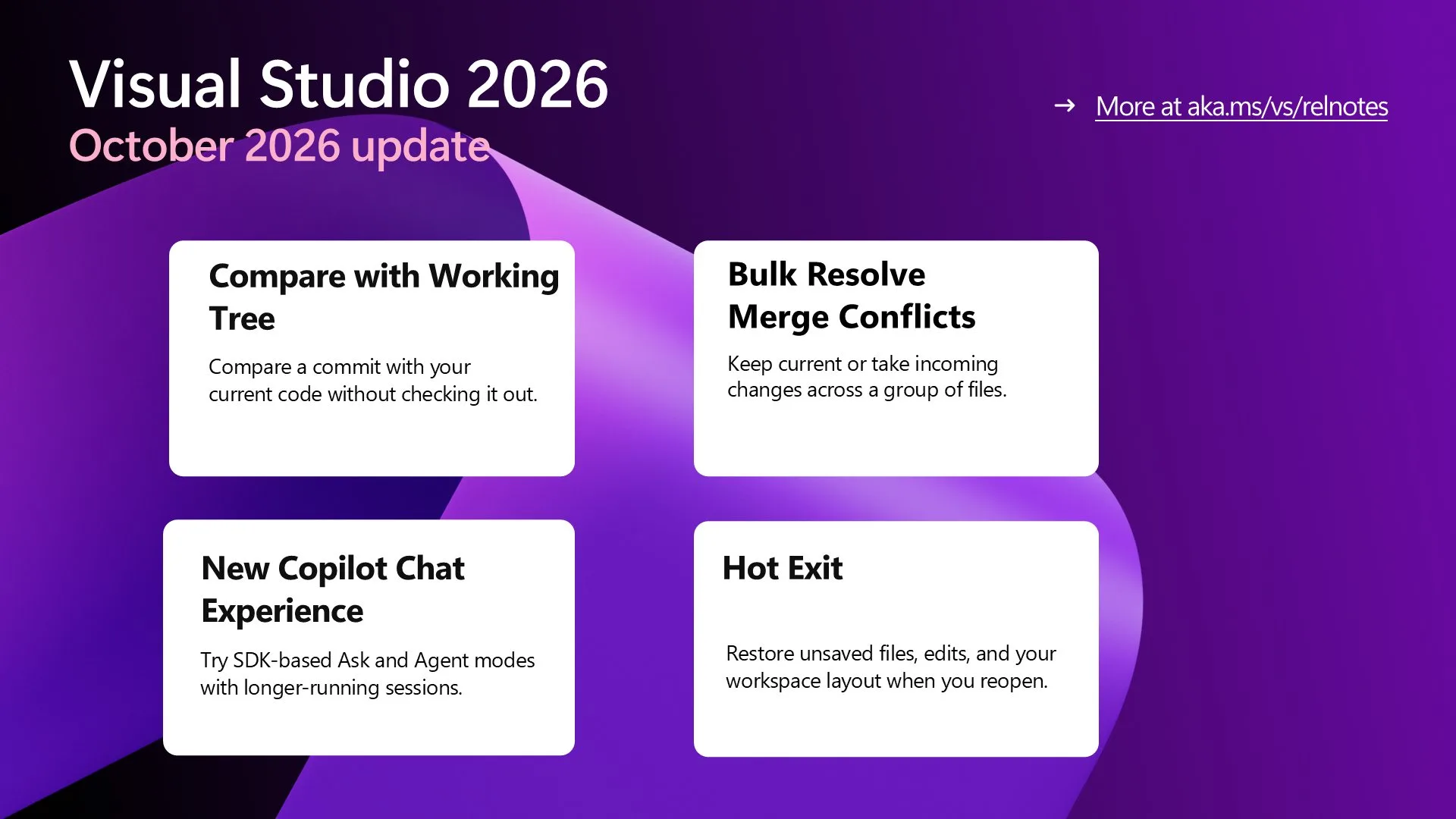
The October Visual Studio update introduces commit-to-working-tree diffing and bulk conflict resolution to streamline Git-heavy workflows.
Deep dive
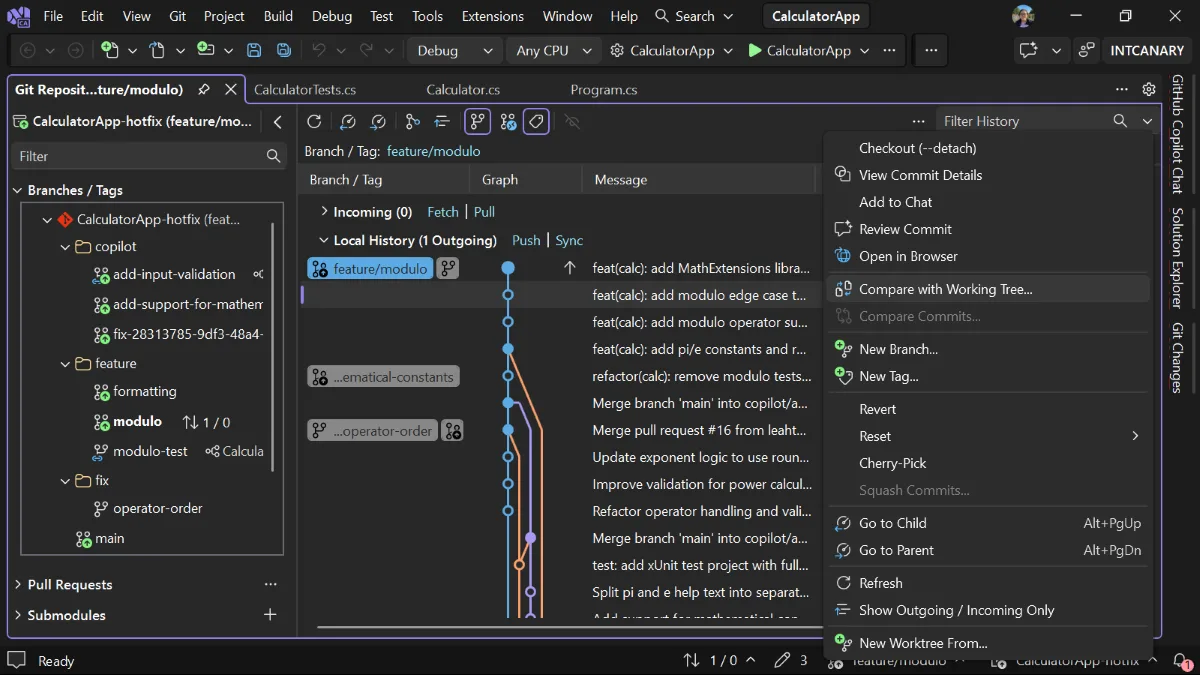
- Compare any commit to the working tree by right-clicking in the Git Repository window.
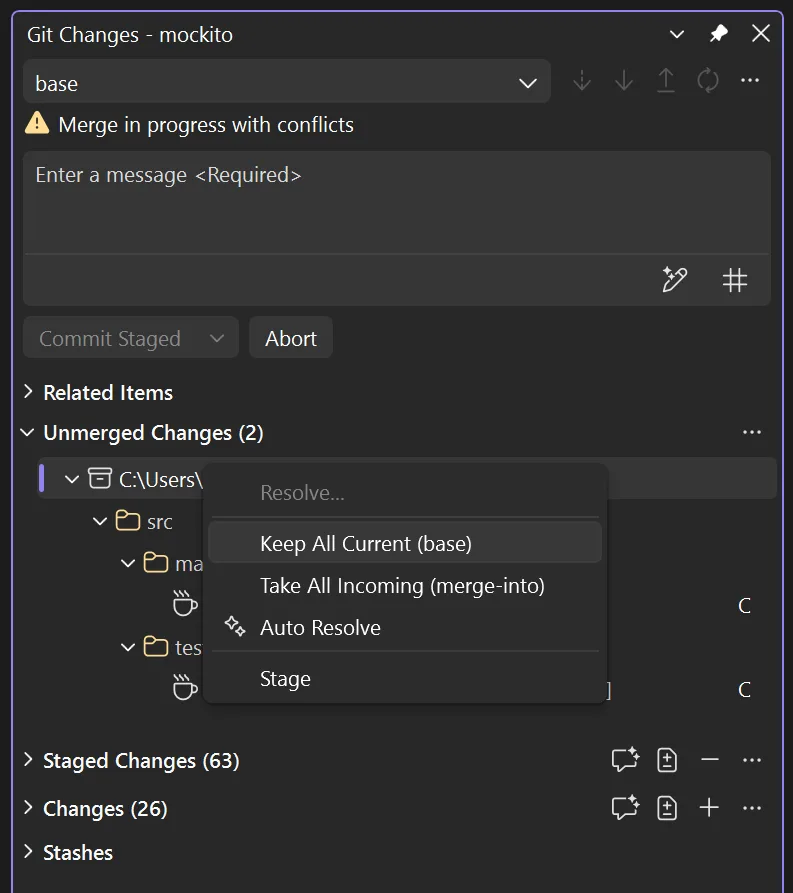
- Bulk resolve conflicts across multiple files using right-click options in the Git Changes pane.
- The new Copilot Chat experience utilizes the same SDK as the GitHub Copilot CLI for consistent behavior.
- Hot Exit preserves unsaved file states and window layouts between sessions.
- Keyboard shortcuts (Ctrl+Shift+PgUp/PgDn) added for reordering document tabs.
Decoder
- Working tree: The current state of the files in your project directory as you are actively editing them, distinct from the staged or committed files in Git.
- Hot Exit: A feature that preserves unsaved file buffers and IDE state during process shutdown.
Original article
The October Visual Studio update gives you a clearer view of how your code has changed and more control over resolving merge conflicts. Compare an earlier commit directly with your current working tree, including edits still in progress, and apply the same conflict resolution across multiple files at once.
There’s more to try beyond Git: a new Copilot chat experience, Hot Exit for unfinished work, keyboard shortcuts for organizing tabs, and a refreshed Fonts and Colors page. Update to the Visual Studio 2026 Stable Channel to get started.
Compare a Commit to Your Working Tree
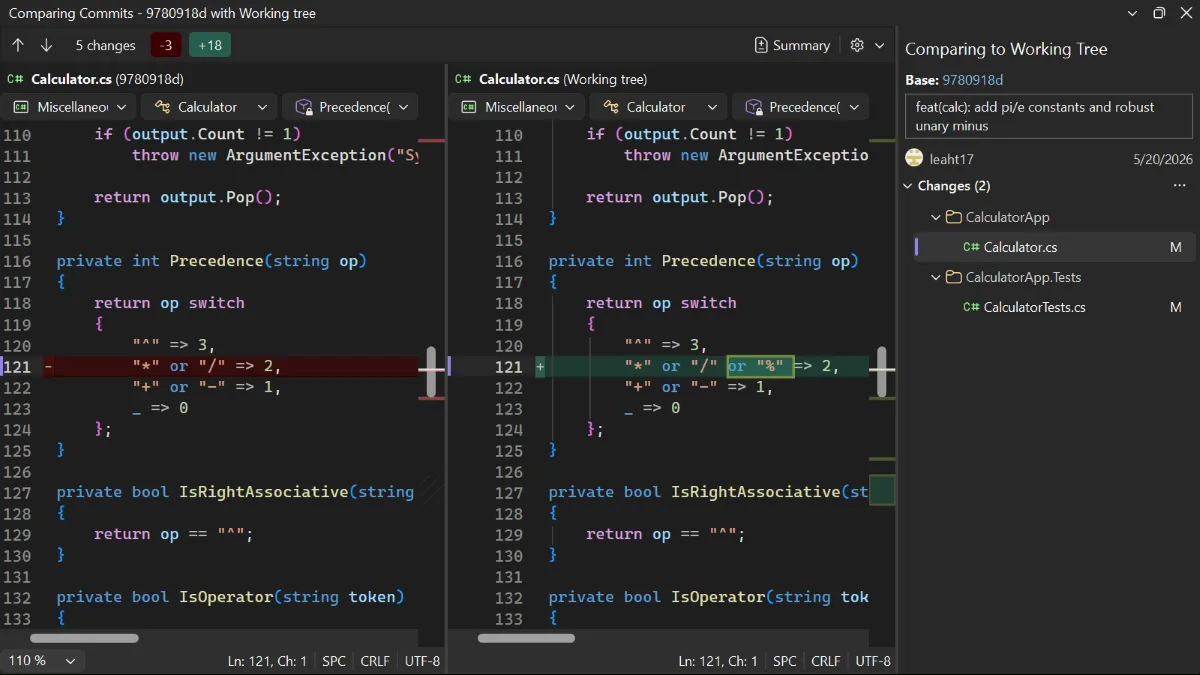
Need to see how your current code differs from an earlier commit? You can now compare that commit directly with your working tree across your repository, including committed changes and edits still in progress. Use it to review a refactor across several commits or investigate what’s changed since a known-good version.
From commit history or the branch list in the Git Repository window, right-click a commit and select Compare with Working Tree. The compare view lets you browse changed files and inspect their diffs against the code you have today.
Bulk Resolve Merge Conflicts
When you already know which side to keep across several conflicted files, you shouldn’t have to repeat that choice for every file. You can now resolve conflicts across a group of files at once.
In Git Changes, right-click multiple selected files, a folder, or the repository root under Unmerged Changes and select Keep All Current or Take All Incoming. The selected resolution applies to all selected files, or all conflicted files within the selected folder or repository.
Try the New Copilot Chat Experience
The new GitHub Copilot Chat experience builds on the Copilot SDK foundation introduced with Agent (Preview). That foundation now extends to Ask mode, Agent mode, and the underlying chat infrastructure, sharing the SDK used by the Copilot CLI and GitHub Copilot app.
It brings more capable end-to-end agent workflows with less back-and-forth, longer-running sessions with more effective prompt caching, and consistent behavior across Copilot experiences. To try it, open Tools > Options > GitHub > Copilot > Copilot Chat, select Use new Copilot chat experience, then restart Visual Studio.

Enable it for your next coding session and let us know how it handles the work. If something is missing or isn’t working, use Help > Send Feedback > Report a Problem to tell us.
Keep Unsaved Work with Hot Exit
Closing Visual Studio doesn’t have to mean deciding where to save every unfinished file. Hot Exit preserves your unsaved work between sessions, including new files you haven’t saved and edits to existing files.
When you reopen Visual Studio, it restores those documents and changes, along with your tab and window layout. It also preserves undo functionality for saved files, including Ctrl+Z. Hot Exit is off by default; to enable it, open Tools > Options, expand All Settings > Projects and Solutions > General, and select Reopen unsaved documents on solution load or empty environment.
Move Documents with the Keyboard
You can now reorder tabs without reaching for the mouse. Press Ctrl+Shift+PgUp to move the active tab left or Ctrl+Shift+PgDn to move it right. With vertical tabs, the same shortcuts move it up or down. They work for documents and tool windows hosted in the document well.
Pinned and unpinned tabs stay separate. Vertical tabs stay within their project group, and manual reordering isn’t available when alphabetical sorting is enabled. Preview tabs can’t be moved.
You can remap Window.MoveTabLeft and Window.MoveTabRight in Tools > Options > Environment > Keyboard. The defaults replace the previous Text Editor bindings for Edit.ViewTopExtend and Edit.ViewBottomExtend; those commands remain available if you want to assign them different shortcuts.
Personalize Fonts and Colors
Finding the right editor customization is easier with the refreshed Fonts and Colors experience, now built on Unified Settings. Category-based navigation and integrated search help you find the settings you want, while inline previews let you see colors and font styles alongside each item.
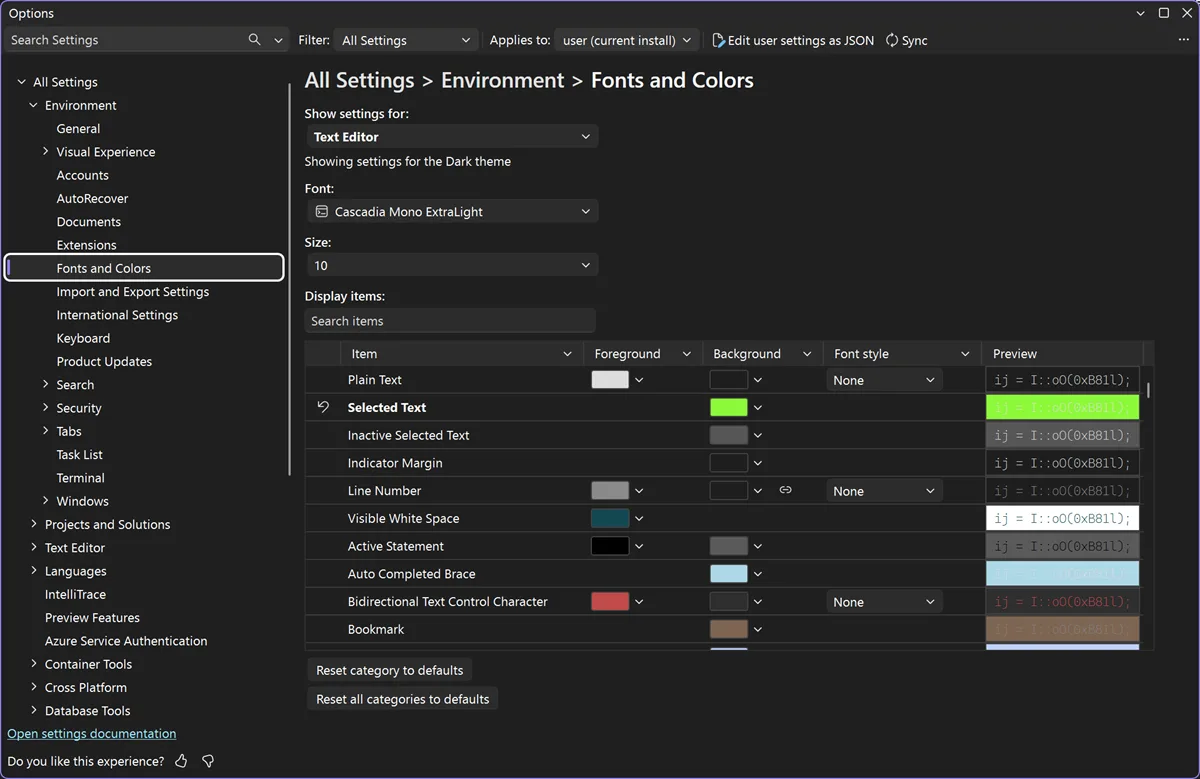
Foreground colors, background colors, font styles, and previews are all displayed in the settings grid, so you can review and update multiple items without repeatedly selecting each one. Changes also stay synchronized with settings.json, giving you a way to inspect, edit, share, or revert your customizations directly in the file.
Fresh dev news, AI-digested daily. Never miss a trend at devoured.fyi